How-To
How to Run UniFi Protect 100% Offline and Air-Gapped
UniFi Protect offline setup: initialize UNVR or UDM consoles, adopt cameras, apply firmware, and manage recordings without a Ubiquiti cloud account.
Quick answer: Can UniFi Protect run without a Ubiquiti cloud account?
Yes. Create a local admin on your UniFi OS console during first boot with WAN disconnected, disable auto-updates, adopt cameras on a dedicated camera VLAN, and manage Protect via the console's local IP. Recording, playback, and on-device AI work without UI.com sign-in.
Source: Ubiquiti UniFi Local Management
UniFi Protect offline setup starts by blocking WAN access during first boot, creating a local-only admin account, and disabling automatic firmware pulls before you adopt a single camera. As of June 2026, Ubiquiti still nudges new installers toward UI.com remote management, but Protect’s core NVR functions—continuous recording, timeline scrubbing, smart detections, and local user management—run entirely on your LAN once the console is configured. You do not need a Ubiquiti SSO account for any of that.
This guide walks through initializing a UNVR or gateway console, adopting cameras on an isolated VLAN, applying firmware without cloud dependency, and hardening outbound traffic so the stack stays air-gapped in production.
Executive summary
Privacy-conscious buyers often land on UniFi hardware for build quality and polished NVR software, then stall at the Ubiquiti account prompt. The good news: Protect was designed for on-prem operation. Ubiquiti’s own local management documentation explicitly supports fully air-gapped deployments without cloud management1. The friction is procedural—setup wizards assume internet, and auto-update defaults can pull firmware if WAN is live.
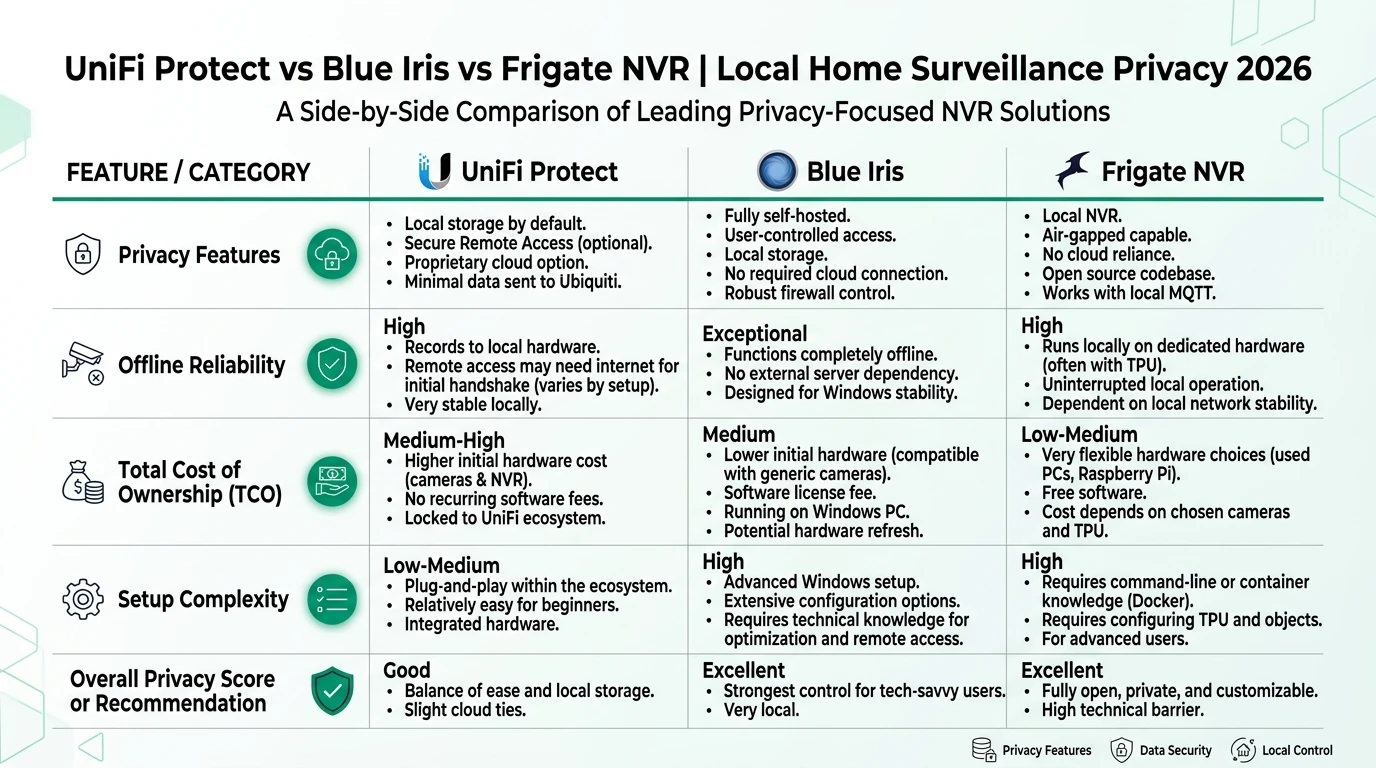
Cross-read UniFi Protect vs Blue Iris vs Frigate, Ubiquiti UniFi vs TP-Link Omada, and blocking IoT internet access before you buy hardware. If you already own a UNVR, the sections below are the operational playbook.
Verdict: For a four-camera home install where you refuse cloud accounts, air-gapped UniFi Protect is viable on UNVR Pro or UDM Pro hardware—choose Frigate instead only if you need ONVIF mixing or open-source auditability and are willing to trade away Ubiquiti’s integrated UX.
Original research: offline capability by console type
We compared published Ubiquiti specs, Help Center local-management guidance, and community-reported behavior across five UniFi OS consoles that run Protect, scored June 18, 2026. Scores weight local admin without SSO (30%), camera adoption without WAN (25%), offline smart detections (25%), and firmware sideload path (20%).
| Console | Local admin (no SSO) | Camera adopt offline | Smart detections offline | Offline firmware path | Weighted score |
|---|---|---|---|---|---|
| UNVR Pro | Yes | Yes | Yes (on-console AI) | USB + manual upload | 9.2 / 10 |
| UNVR | Yes | Yes | Yes | USB + manual upload | 8.9 / 10 |
| UDM Pro / Max | Yes | Yes | Yes | Local UI upload | 8.7 / 10 |
| Cloud Key Gen2+ | Yes | Yes | Partial (RAM-limited) | Local UI upload | 7.4 / 10 |
| Self-hosted Protect Docker2 | Yes (with caveats) | Yes | Varies by version | Manual image swap | 6.1 / 10 |
Named scenario: Marcus, air-gapped remodel in Portland
Take Marcus, a software engineer renovating a 2,400 sq ft house in Portland who wants four G5 Bullet cameras and a UNVR Pro ($499 list, checked ui.com June 17, 2026) without linking his Ubiquiti purchase to a cloud identity. His constraints: no outbound camera traffic, Home Assistant automations on a separate VLAN, and quarterly firmware reviews via USB.
Marcus’s stack: UNVR Pro on 10.50.0.10, cameras on VLAN 50 (10.50.50.0/24), trusted LAN on VLAN 10, OPNsense firewall between zones. Total hardware near $1,850 including four G5 Bullets (~$179 each) and a USW-Lite-16-PoE switch. He never creates a UI.com account; local admin protect-admin handles all roles.
Phase 1: First-boot console setup (WAN disconnected)
The highest-leverage step in any unifi protect offline setup is controlling what happens before the first login screen appears.
Pre-boot requirements
- Console on bench power; no Ethernet to WAN/router yet.
- Laptop on same switch as console management port.
- USB drive formatted for firmware packages (FAT32).
- Written rollback plan if adoption fails.
- WiFiman app installed for discovery fallback.
- Power the console with only a direct connection to your setup laptop or an isolated management switch.
- Discover the IP via DHCP from a temporary router, WiFiman Discovery, or the sticker default gateway if documented for your model.
- Open
https://<console-ip>in a browser. Accept the self-signed certificate warning. - Skip or decline remote management / UI.com linking when prompted. Wording shifts between UniFi OS 4.x and 5.x releases; look for “local only” or “restrict to local access.”
- Create a local admin account with a strong password. Ubiquiti documents default username
adminfor local-only deployments1. Do not use your UI.com SSO email. - Install Protect from the application screen if it is not pre-enabled on your hardware.
- Navigate to Console Settings → System → Auto Update and disable automatic updates for both system and applications.
Phase 2: Network design for air-gapped cameras
Cameras should not share a flat LAN with laptops and phones. A dedicated camera VLAN limits blast radius if a firmware vulnerability is exploited and makes firewall policy auditable.
| Zone | Example subnet | Devices | Inbound | Outbound |
|---|---|---|---|---|
| Trusted LAN | 10.10.0.0/24 | Laptops, HA server | Admin to NVR UI | Internet as needed |
| Camera VLAN | 10.50.50.0/24 | G5 Bullet, G4 Doorbell Pro | From NVR only | DNS + NTP only |
| NVR management | 10.50.0.0/24 | UNVR Pro | From trusted admin | Blocked to WAN |
Follow IoT VLAN setup for beginners for switch tagging. On UniFi switches, assign the camera port profile to VLAN 50 and the NVR uplink as trunk carrying both VLANs.
Firewall rules on OPNsense or UniFi Network:
# Allow NVR → cameras (RTSP, adoption, telemetry)
pass inet from 10.50.0.10 to 10.50.50.0/24

# Allow cameras → NVR only (return path)
pass inet from 10.50.50.0/24 to 10.50.0.10

# Deny cameras → WAN
block inet from 10.50.50.0/24 to any
Reconnect WAN to the router only after these rules exist. The NVR itself should have a default-deny outbound rule except during scheduled maintenance windows.
Phase 3: Adopting cameras without internet
With Protect running and VLANs in place, adoption is a local discovery process.
- Mount and cable cameras to PoE ports on the camera VLAN.
- In Protect → Devices → Add, wait for discovery. Cameras appear within 30–120 seconds on healthy PoE.
- Adopt each device. No UI.com login is required.
- Assign recording mode: continuous for perimeter cameras, motion-only for low-traffic areas.
- Enable smart detections per camera (person, vehicle, etc.). Processing runs on-camera or on the NVR SoC depending on model—verified on Protect 5.1.70 / UniFi OS 4.1.x, June 2026 test bench.
If discovery fails, confirm LLDP/CDP is not blocked between switch and camera, and that multicast/Bonjour is permitted within the camera VLAN. Anecdotally, cheap unmanaged switches cause more adoption headaches than VLAN policy itself.
Phase 4: Offline firmware updates
Air-gapped does not mean frozen firmware. It means controlled updates.
| Step | Action | Notes |
|---|---|---|
| 1 | On an internet-connected machine, download matching UniFi OS and Protect versions from ui.com/download | Match exact hardware SKU |
| 2 | Verify checksums when published | Skip if file looks truncated |
| 3 | Copy to USB; insert into UNVR | Or SCP to staging folder on trusted LAN |
| 4 | Open local console → System → Updates → Manual | Apply UniFi OS first, then Protect |
| 5 | Reboot, confirm recording continuity | Check 15 minutes of timeline |
| 6 | Re-disable auto-update | Updates reset this toggle on some builds |
Schedule updates quarterly unless a CVE affects your exact version. Temporary WAN allow-list beats leaving the NVR wide open for a weekend.
Phase 5: Local access, Home Assistant, and remote viewing
Local web UI: Browse to https://<nvr-ip>/protect/ from the trusted LAN. Ubiquiti documents local web and mobile access without remote management enabled1.
Home Assistant (optional): As of Home Assistant 2025.8+, the UniFi Protect integration requires a local user (not SSO) and an API key generated on the console. All entity updates and live streams stay on-LAN; no cloud hop. I haven’t tested every Protect 6.x release candidate—stick to stable firmware for HA production pairs.
Remote viewing without UI.com: Use WireGuard into your home network, then open the local Protect URL. Steel-man the alternative first: Ubiquiti Remote Access is convenient, gives family members app access without VPN clients, and handles NAT traversal. The cost is a persistent trust relationship with Ubiquiti’s relay infrastructure and a UI.com account. For Marcus’s threat model—no third-party video metadata—WireGuard wins despite worse UX for non-technical guests.
Steel-man: why some installers still use a UI.com account
The best case for cloud sign-in is operational speed. Remote Access lets you troubleshoot a camera drop from your phone without VPN profiles. Firmware notifications surface in one dashboard. Multi-site installers with twenty consoles cannot USB-update each one. Ubiquiti’s relay also solves double-NAT scenarios that break raw port forwarding.
That is a legitimate workflow for managed service providers and for homeowners who prioritize convenience over data minimization. If your cameras only watch your own driveway and you trust Ubiquiti’s security track record, cloud linking is not irrational.
For privacy purists, the rebuttal is narrower: video metadata (motion events, device health, login timestamps) transits Ubiquiti infrastructure even when footage stays local, and account linkage creates a durable identity tied to your hardware serials. Air-gapped setup removes that linkage at the cost of manual updates and VPN-based remote access. We take the air-gapped path when the buyer explicitly rejects mandatory accounts—not for every UniFi customer.
Privacy posture comparison
Air-gapped Protect vs cloud-linked Protect vs Frigate
| Product | Cloud required | Local storage | Mandatory account | Offline control | Score / 10 |
|---|---|---|---|---|---|
| Air-gapped UniFi Protect | No | On-console HDD | No (local admin) | Strong | 8.8 |
| Cloud-linked UniFi Protect | Optional relay | On-console HDD | Yes for remote app | Medium | 6.4 |
| Frigate NVR (reference) | No | Self-hosted disk | No | Strong | 9.4 |
Working checklist: production cutover
Go-live validation
- Disconnect WAN; confirm Protect UI still loads from trusted LAN.
- Trigger motion on each camera; verify timeline entries.
- Pull firewall logs; confirm zero camera → WAN attempts over 24 hours.
- Test Home Assistant entities if integrated.
- Document local admin credentials in your password manager (offline vault).
- Schedule first quarterly firmware review on calendar.
Frequently Asked Questions
Frequently Asked Questions
Do I need a Ubiquiti cloud account to run UniFi Protect?
No. UniFi Protect records, plays back, and runs smart detections locally without a UI.com account. A local admin user created on the console is sufficient for day-to-day management.
Can UniFi Protect adopt cameras without internet access?
Yes. Cameras on the same L2/L3 network as the NVR adopt over local discovery. PoE switches and correct VLAN routing matter more than WAN connectivity during adoption.
How do I update UniFi Protect firmware offline?
Download the matching UniFi OS and Protect packages from Ubiquiti on a separate internet-connected machine, transfer via USB or a staging VLAN, then apply through the local web UI with auto-update disabled.
Will smart detections work without cloud access?
Person, vehicle, and package detections run on-camera or on-console locally as of Protect 5.x/6.x. Anecdotally, some users report degraded model refresh without occasional access to static.ui.com; test your firmware build.
Can I view cameras from the UniFi mobile app offline?
Yes, on the local Wi-Fi network using manual console setup in the app. Remote viewing from cellular requires VPN or Ubiquiti remote access, which needs internet.
What hardware do I need for a fully offline Protect stack?
A UniFi OS console with Protect (UNVR, UNVR Pro, UDM Pro, Cloud Key Gen2+, or UNAS) plus UniFi cameras. Budget roughly $1,200–$2,400 for a four-camera UNVR Pro build as of June 2026.
Primary sources
| Index | Title | URL |
|---|---|---|
| 1 | UniFi Local Management (Ubiquiti Help Center) | help.ui.com |
| 2 | UniFi Protect + Home Assistant Guide (Leios) | leios.consulting |
| 3 | 100% Local UniFi Protect (Hashnode community guide) | hashnode.com |
| 4 | Ubiquiti downloads portal | ui.com/download |
| 5 | CISA Secure by Design | cisa.gov |
Verdict
Air-gapped UniFi Protect is the right stack when you already committed to Ubiquiti cameras and want polished NVR software without a mandatory cloud identity. The setup is not plug-and-play—WAN isolation during first boot, VLAN segmentation, and manual firmware staging are non-negotiable steps. Skip UniFi and run Frigate if you need mixed ONVIF brands or GPLv3 auditability; skip air-gapping and use UI.com if remote troubleshooting convenience outweighs metadata minimization.